Invite your colleagues to collaborate
No more linear workflows and back-and-fourth emails. Work collaboratively direct in MashrMail with your designers, copywriters and colleagues to build emails more effeciently.
Introduction
We believe that the true power of MashrMail is through real-time collaboration during the production process. Invite your team to collaborate with you directly in the product, have your designers jump in and update visual assets, and have your copywriter tweak that headline for that perfect messaging.
Accessing Users
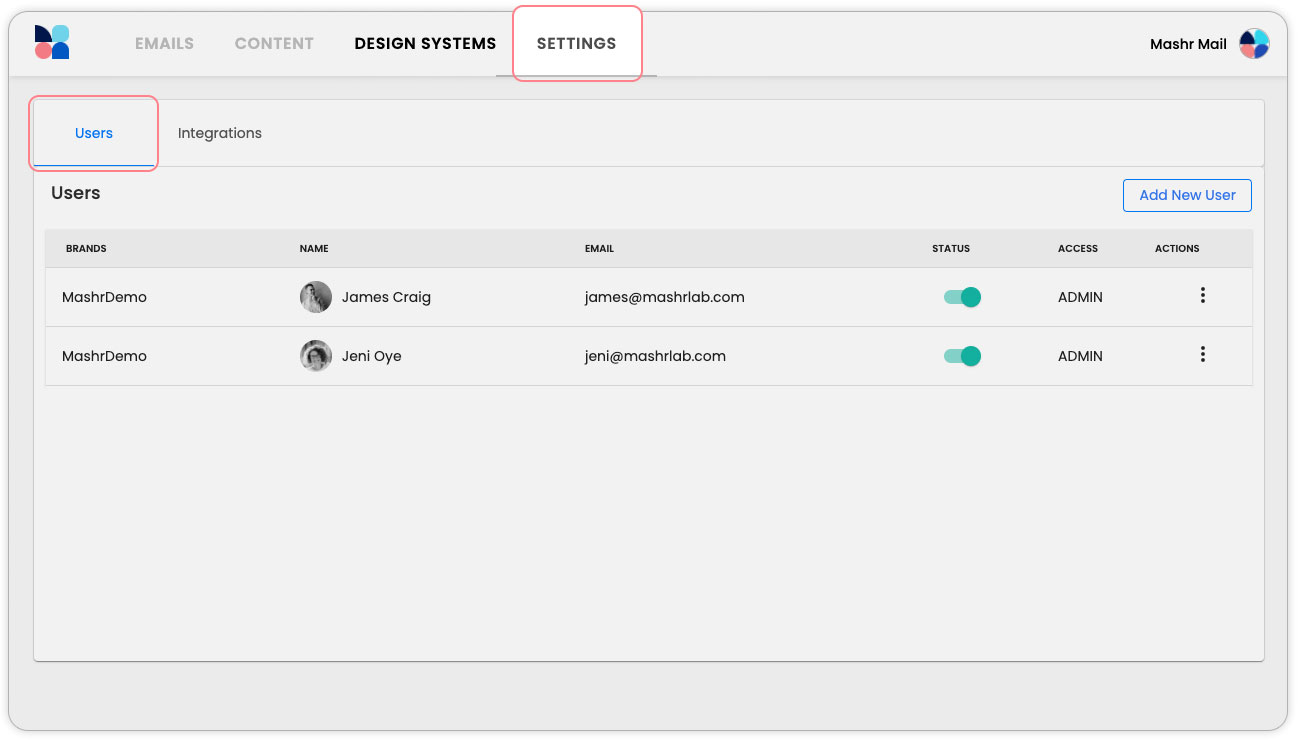
The Users page is located in the main navigation under ‘Settings'. Once in Settings, you can access the Users page as part of the sub-menu. Here you can add new users, edit existing users, or remove any users who no longer require access to MashrMail.
Adding New Users
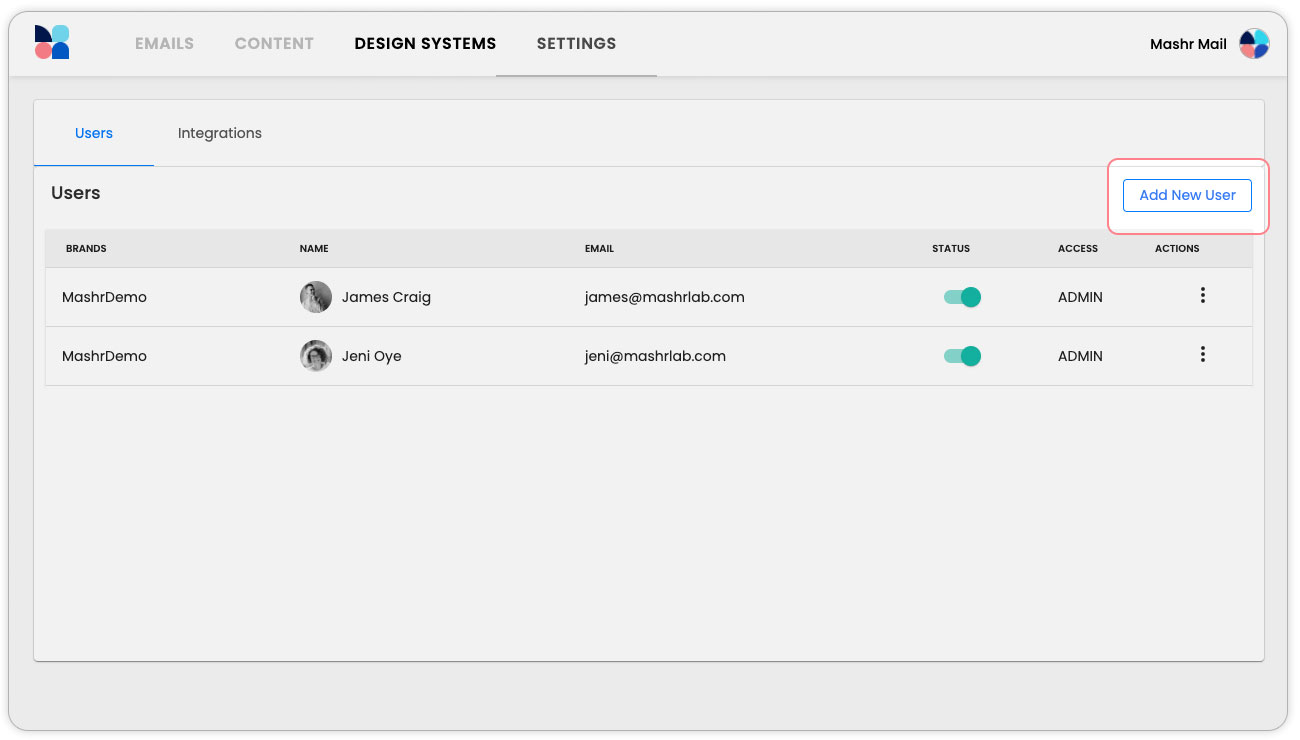
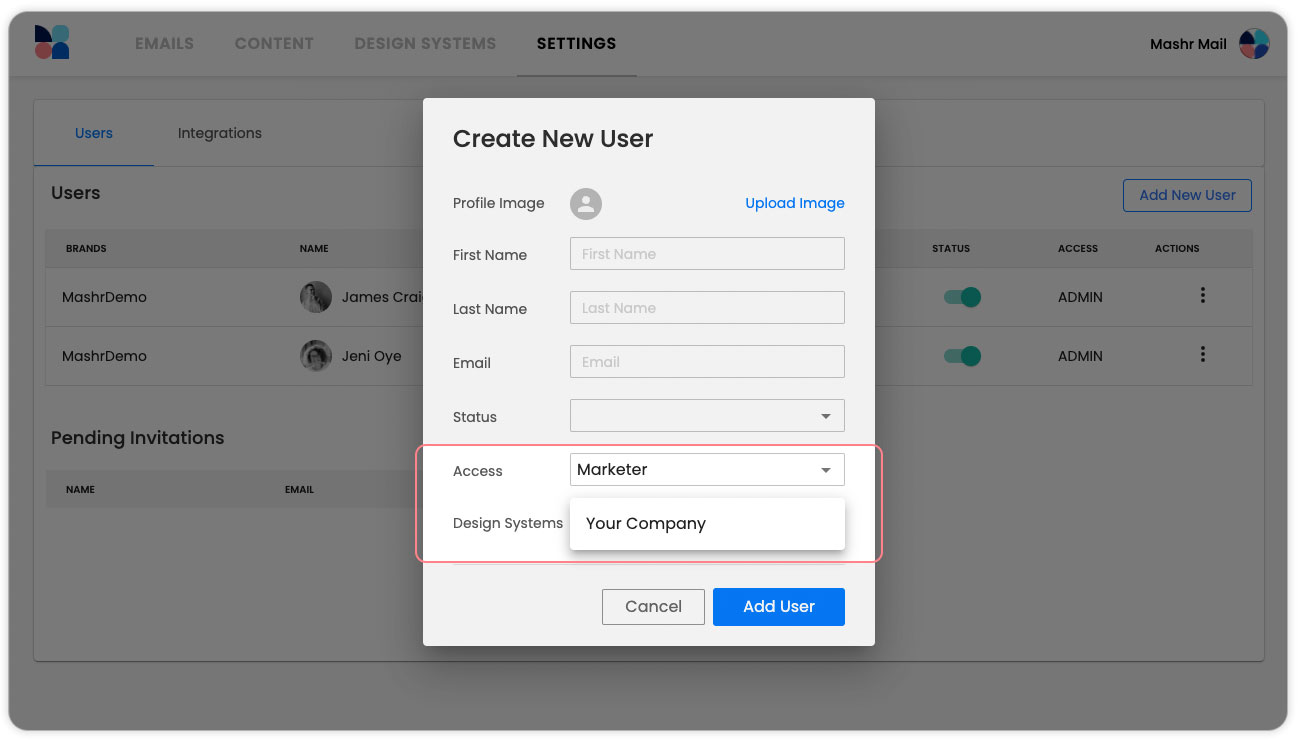
Once in the user management screen, you can add new users by selecting the ‘Add New user’ button.
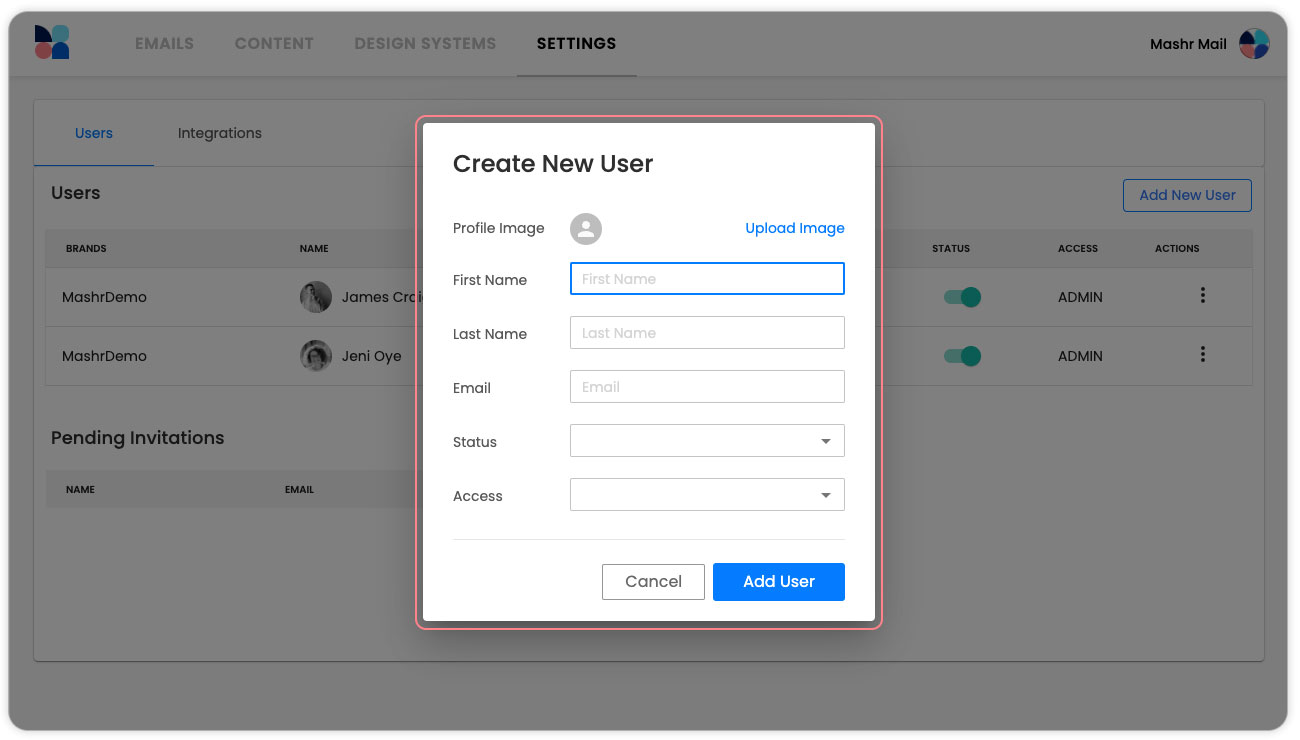
You will then be prompted to enter the relevant information for your new user. After entering these details the user will be emailed an invitation link to MashrMail where they can set their password for their account.
Assigning User Access
As MashrMail encourages collaboration between different members of your teams with different responsibilities in your workflow we allow you to assign different user access. These roles are predefined as below and change the user experience depending on the responsibilities of the role.
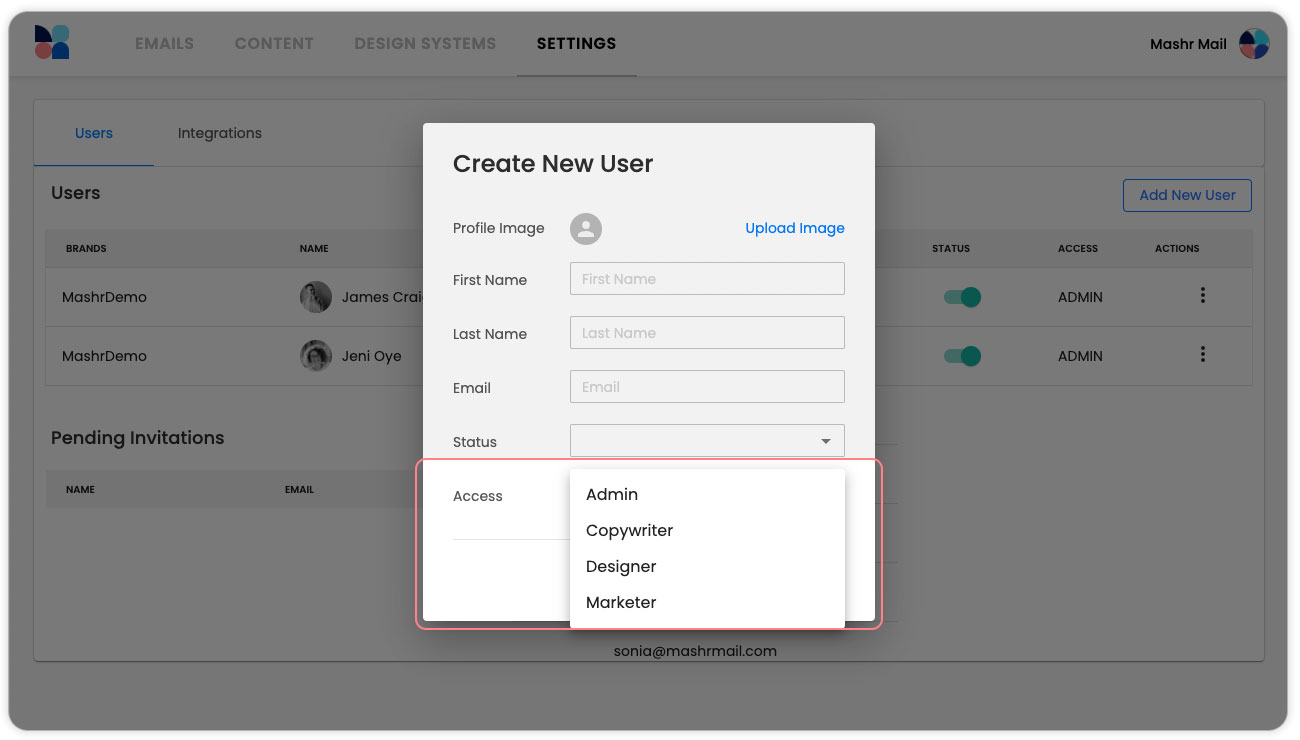
Admin: These users are responsible for the setup and maintenance of the centralised email production system using MashrMail. They have full access to all settings in the platform.
Copywriter: These users play a supportive role for the Marketers. They are able to access any text editing capability within the product, but not make any style or functionality-based changes.
Designer: These users support the creative process and have access to more specific style-related features such as inputting specific colour values that are not part of the brand's Design System
Marketer: These users are typically the champions of the product. They are daily users and are the ones doing the build of the emails using modules, potentially writing copy and selecting artwork from preapproved design assets.
Assigning Design Systems
When creating users, with roles other than Admin, you will be able to assign Design Systems. This is a great way of granting access to MashrMail to your wider organisation while still ensuring that only specific users have access to particular parts of your business. Users will only see the Design System and all emails created using that Design System when they log in so this is a great way of separating out sub-brands or departments within your organisation.
To assign a Design System to a user role simply select the desired role and you will then be presented with a new drop-down menu for Design Systems. This menu will allow you to select the Design Systems in your instance and assign any combination of access for the user.
That’s user management, what’s next?
You should now have a good understanding of the setup of MashrMail and how to administer your user management going forward. So it’s now time for the fun part… building your first email!