Exporting an Email to Pardot
Learn how to export your emails using the Pardot integration; including scheduling a list send, creating a template and updating an existing template.
Exporting to Pardot
By utilising the Pardot integration you can quickly and easily export your emails directly to Pardot. Once you have set up your Pardot integration you will have a new export option available in the email builder.
In Mashrmail, select the email you wish to export from the main email page
Once the email builder loads, select the export button in the top right corner and select the Pardot export option.
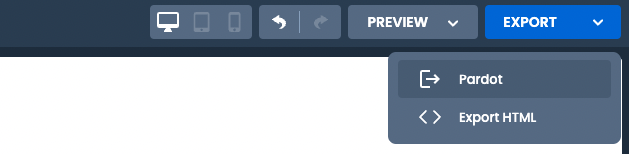
You will then be presented with the Pardot export dialog where you can enter extra information required for exporting. See below for specific export options.
Scheduling a List Send
The default export option is ‘Schedule send’ which creates a new List Send email in Pardot. This scheduled send can be edited after export directly in Pardot.
First, select the Pardot export option from the Export menu.
You will then be presented with the Pardot export dialog where ‘Schedule a Send’ will be selected by default.
Enter the required export details:
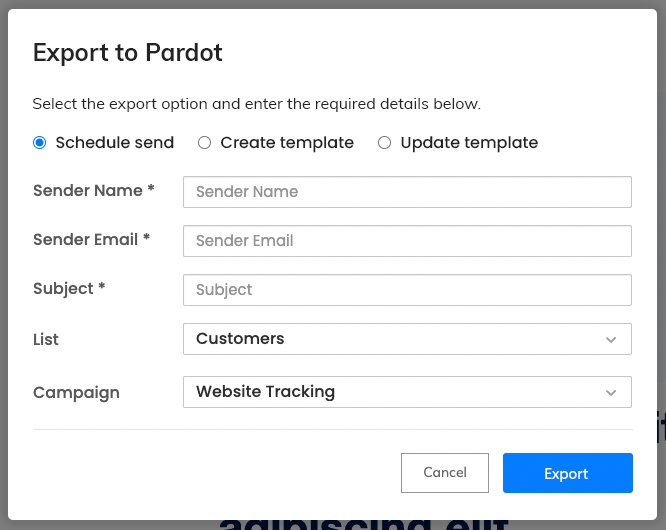
Sender Name: This is the from name for your email, e.g. “Your Company”
Sender Email: This is the from email address for your email, e.g. “your@company.com”
Subject: This is the subject line for your email, e.g. “Welcome to our company”
List: This is the Pardot contact list you would like to send the email to, e.g. “All contacts”
Campaign: This is the Pardot campaign the email send will be associated with. e.g. “Website Tracking”

The send date/time is currently fixed at 3 months in the future to ensure no accidental sends of emails. This can be edited in Pardot after export as per step the steps below.
Editing a scheduled send in Pardot
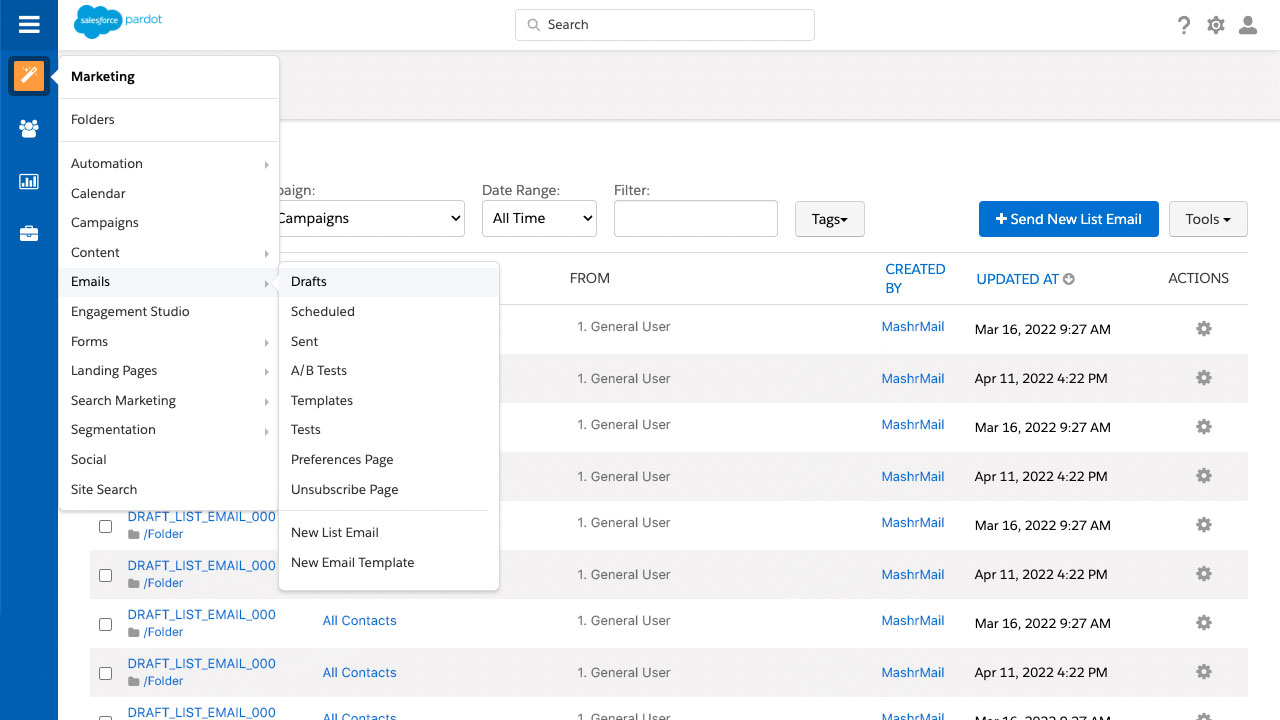
After export, the email will appear in Pardot in your scheduled emails in Marketing > Emails > Scheduled. If you wish to edit this email further in Pardot, you can click the small settings icon underneath actions on the right of the email.
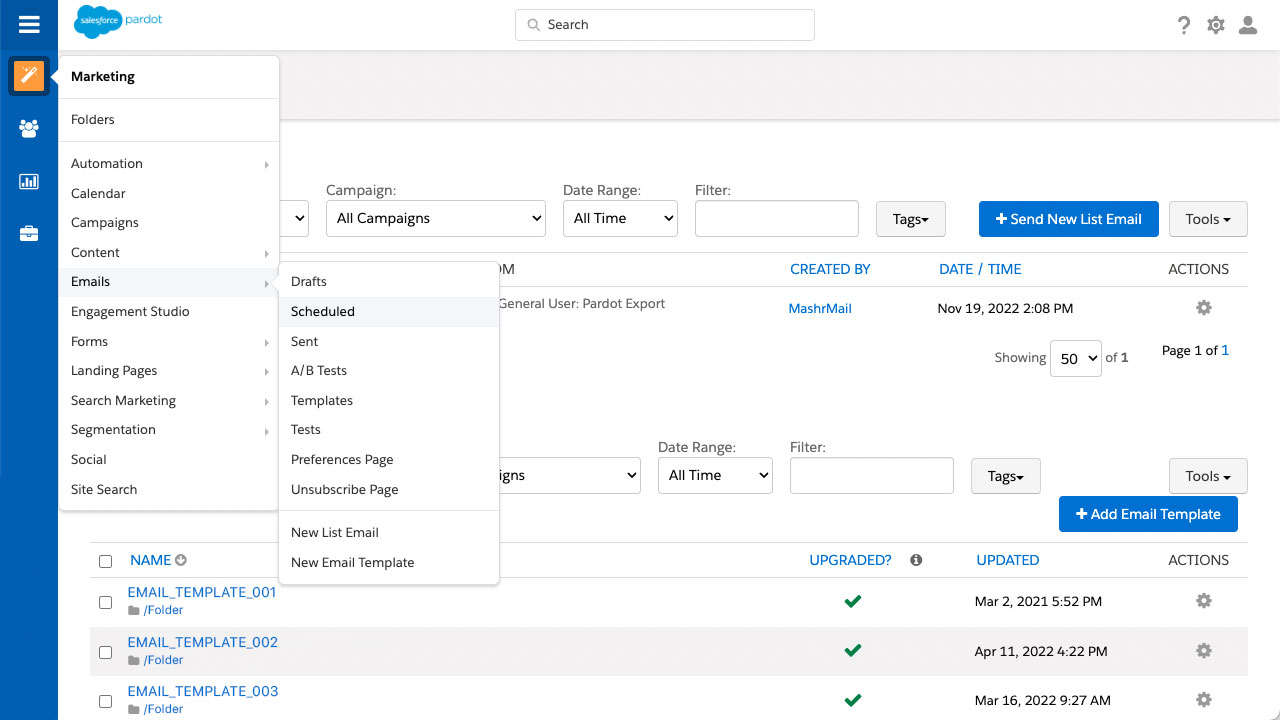
Editing a scheduled send will turn the send back into a ‘draft’ list email where you can make further edits as needed before rescheduling. These draft emails can be accessed via Marketing > Emails > Drafts.
Creating a Template
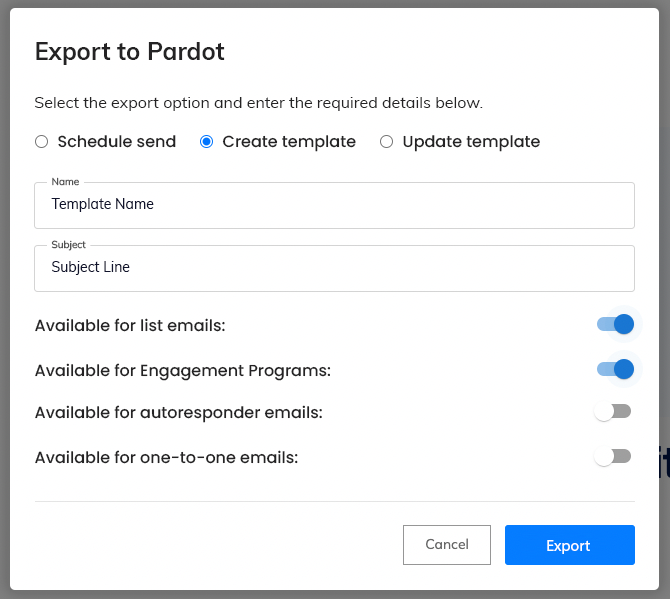
If you would like to create a template in Pardot, which will be used to create further emails directly within Pardot, you can select the ‘Create template' option at export.
First, select the Pardot export option from the Export menu.
Select ‘Create template’ from the Export to Pardot export dialog.
Enter the required export details:
Updating a Template
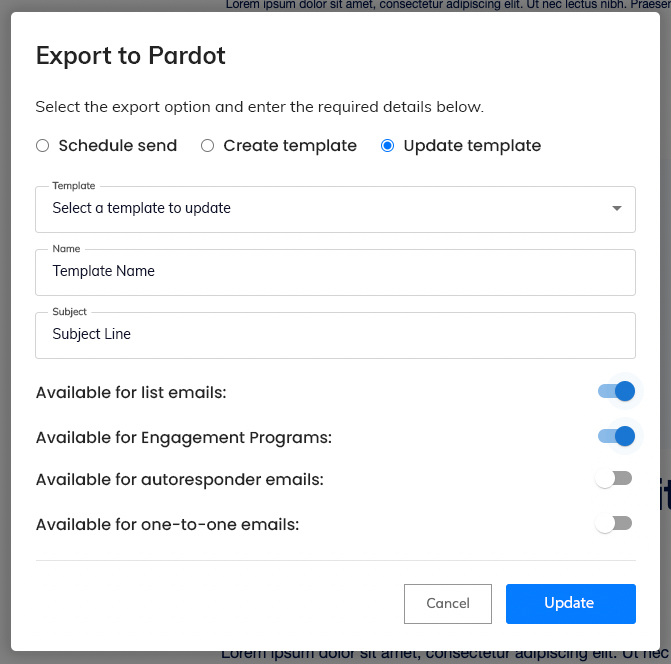
If you would like to update a template in Pardot you can select the ‘Update template' option at export.
First, select the Pardot export option from the Export menu.
Select ‘Update template’ from the Export to Pardot export dialog.
Enter the required export details: